
If your WhatsApp, Facebook, or Instagram account was disconnected from BotCommerce, this may be related to recent changes on Meta’s platform.
Meta may update its API access rules, Business Portfolio requirements, developer app policies, or account connection processes. In some cases, these changes can affect connected accounts and require you to reconnect them inside BotCommerce.
When this happens, please reconnect your accounts as soon as possible to keep using the service. We also recommend exporting your chatbot flows regularly as a preventive backup.
Reconnect WhatsApp
If your WhatsApp account was disconnected, first try refreshing the current connection.
Go to Connect Account, locate your WhatsApp profile, and try the following options:
- Sync
- Register
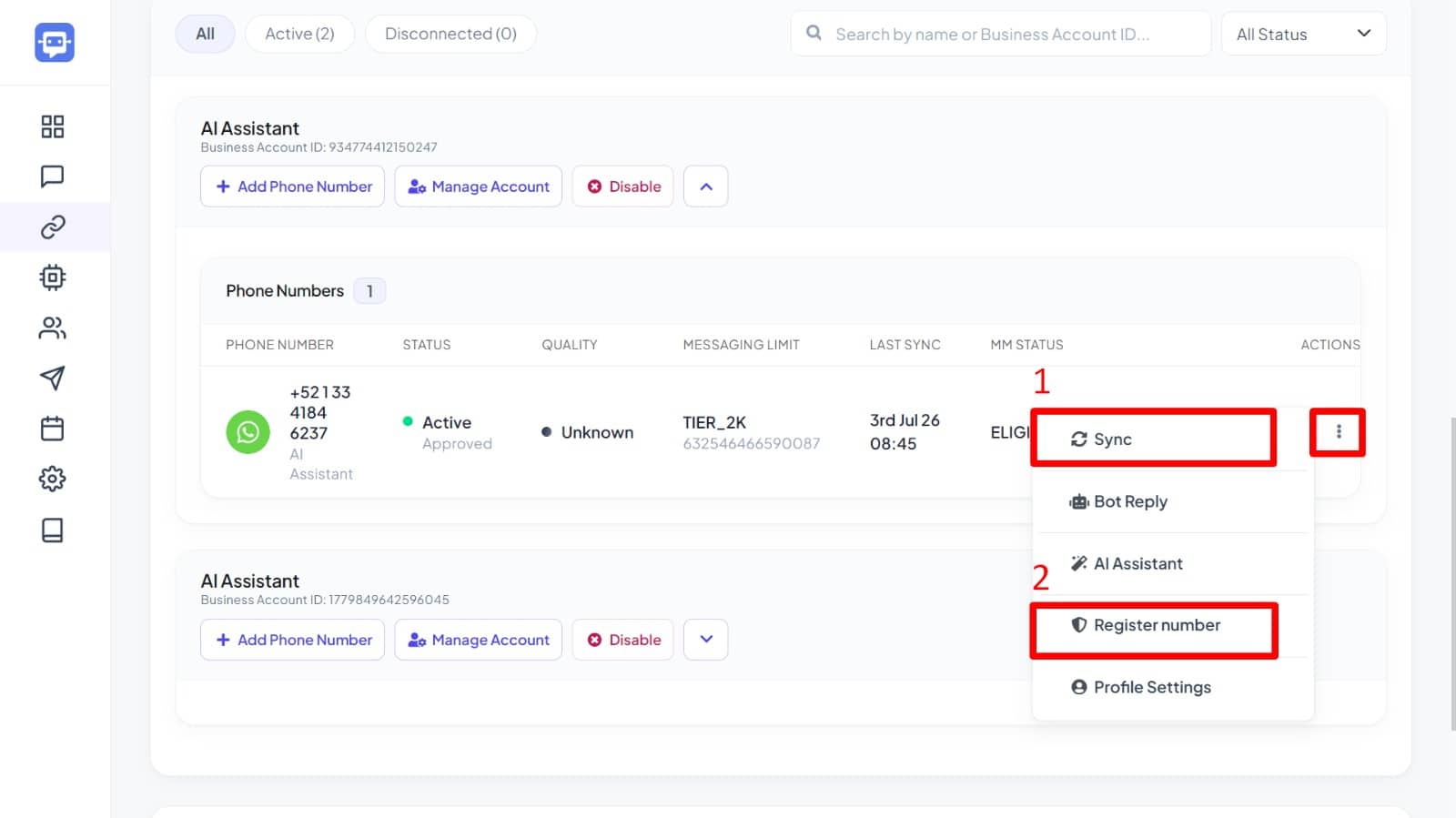
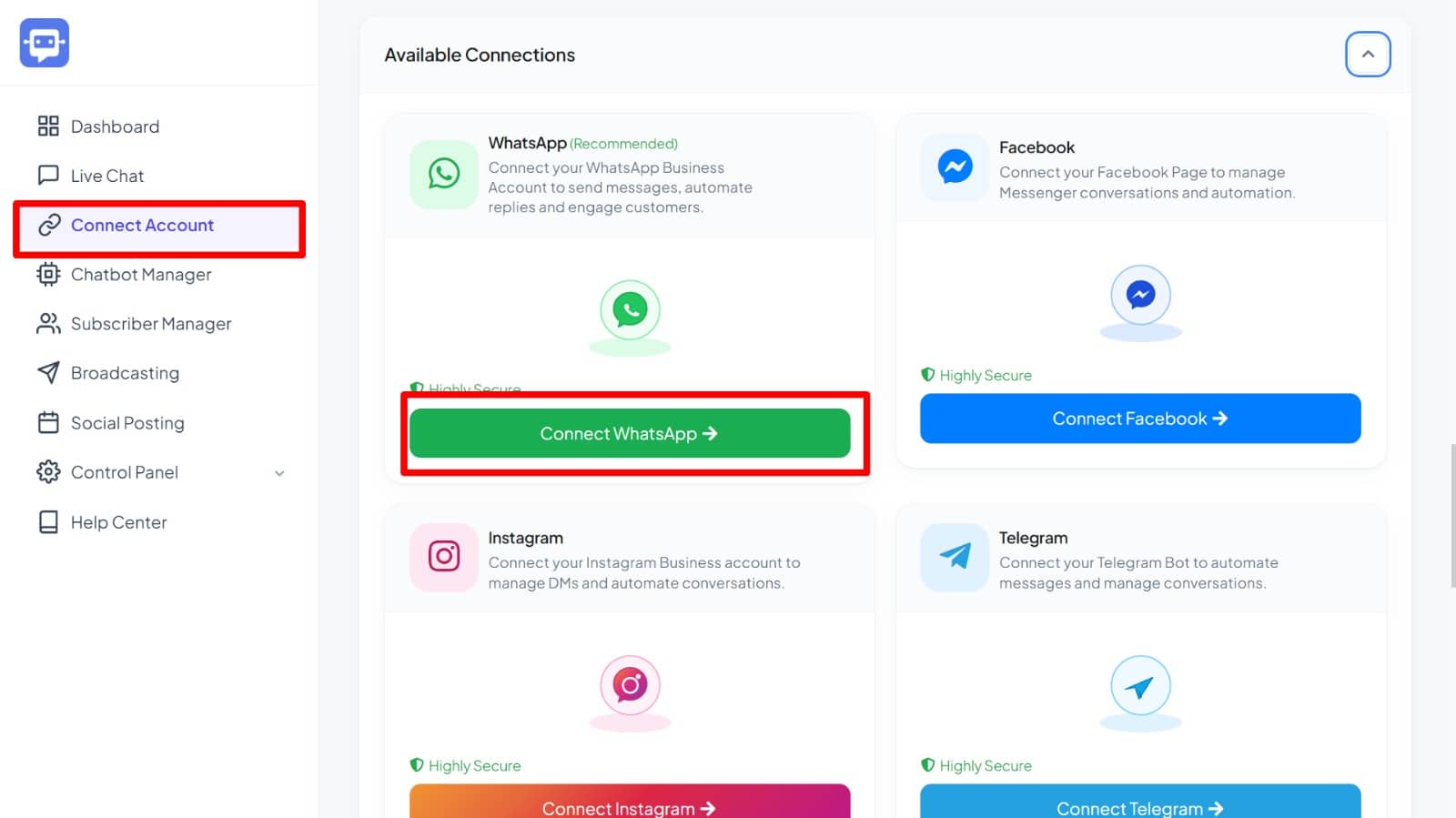
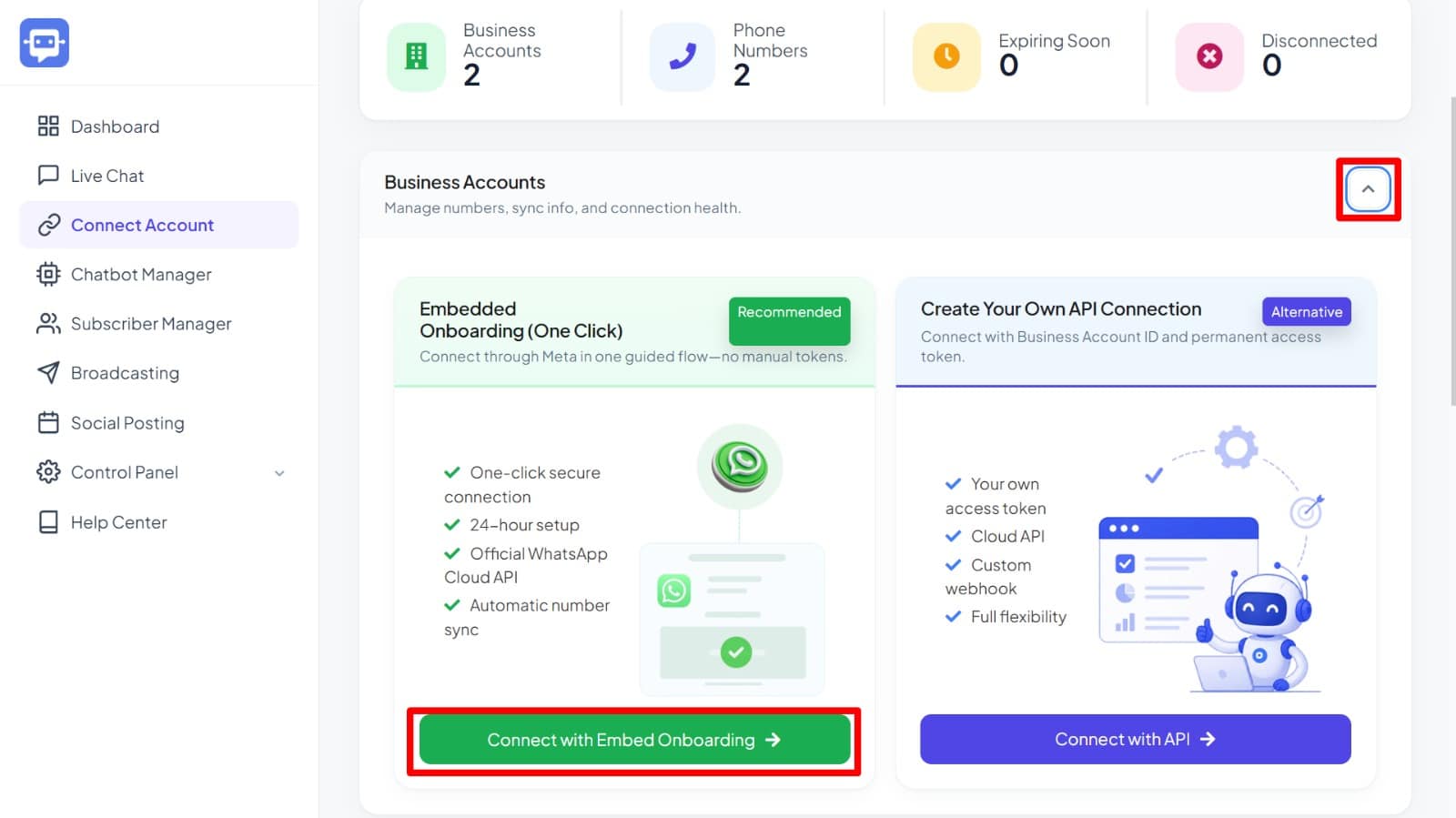
If the issue continues after trying these options, reconnect your WhatsApp account again from the Connect Account > Connect WhatsApp > Connect With Embed Onboarding section.
WhatsApp Red Error Circle
During the WhatsApp connection process, Meta may show a red error circle and prevent you from continuing. This is usually caused by an old partner connection inside your Meta Business Manager.
How to fix it:
Go to your Meta Business Manager by clicking here, open the Partners section, and remove any partner related to Planify X, BotCommerce, or a similar name.
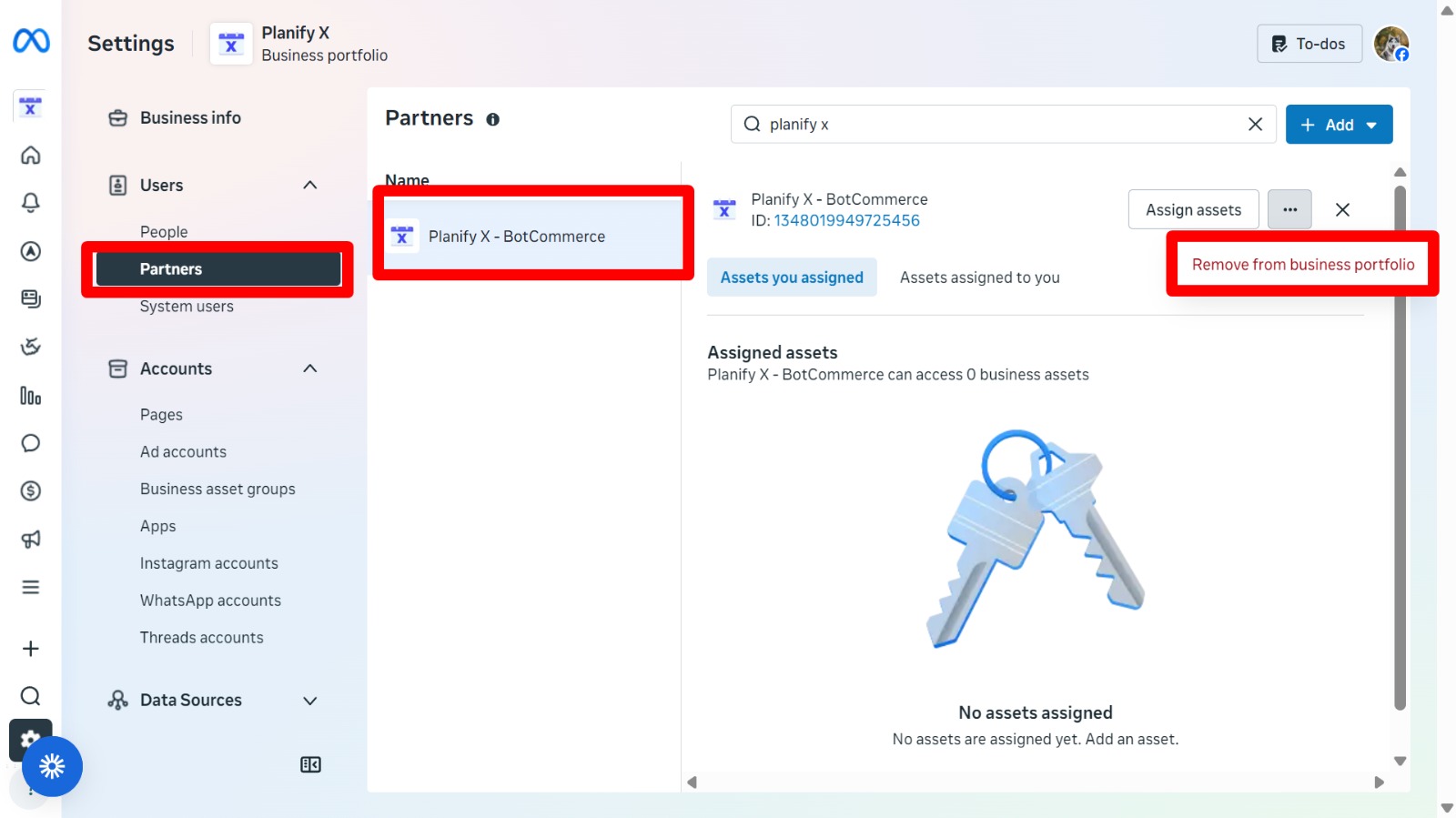
Once the partner has been removed, return to BotCommerce and try connecting your WhatsApp account again.
Additional step:
If the issue continues after removing the partner, go to your Meta Business Manager, open Accounts > WhatsApp Accounts, locate the affected phone number, and remove it from the Business Portfolio.
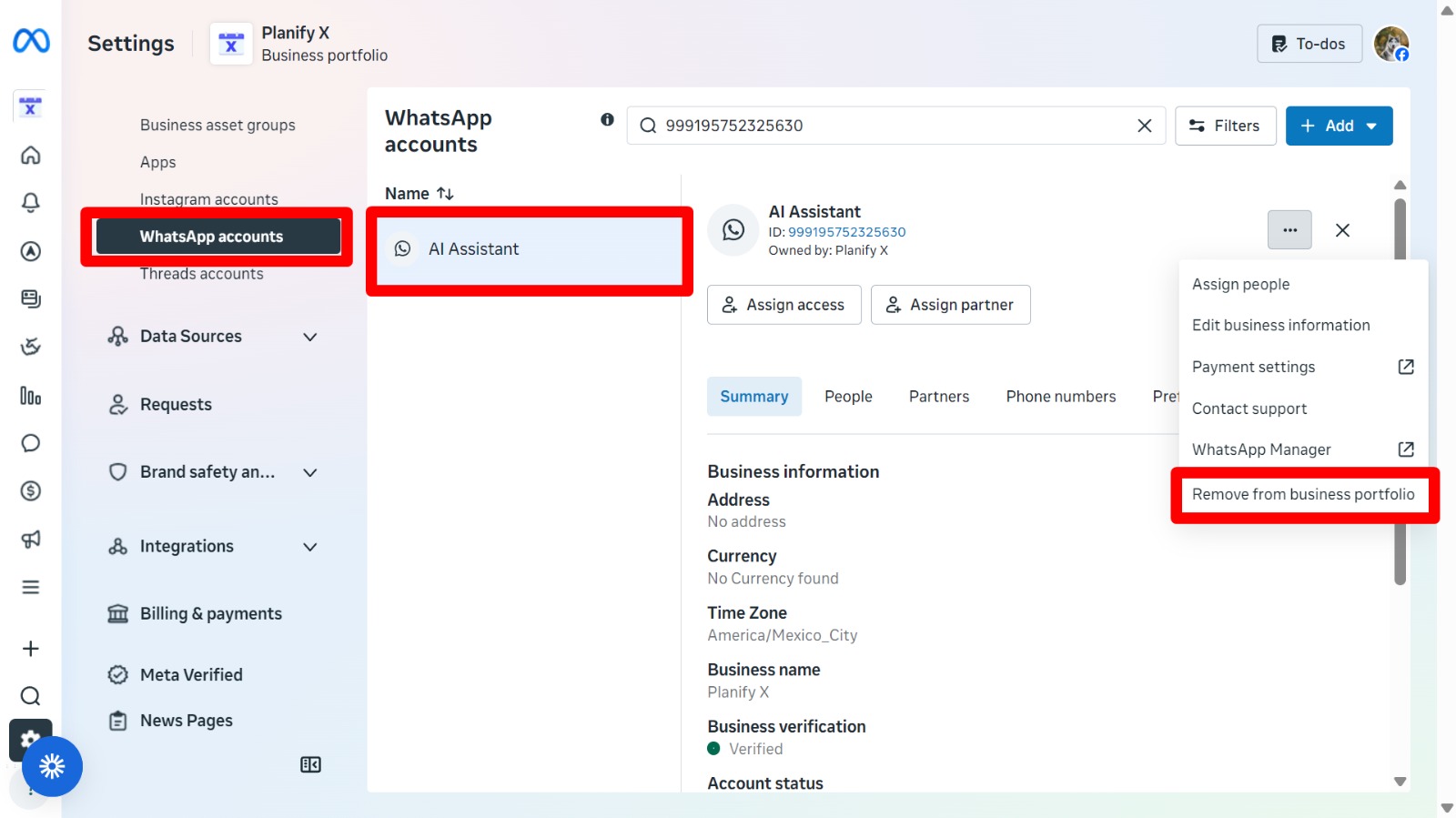
Once the number has been removed, return to BotCommerce and try connecting the WhatsApp account again from scratch.
Reconnect Facebook And Instagram
If your Facebook or Instagram account was disconnected, you can refresh the connection from BotCommerce.
Go to Connect Account and click Connect Facebook (or Instagram).
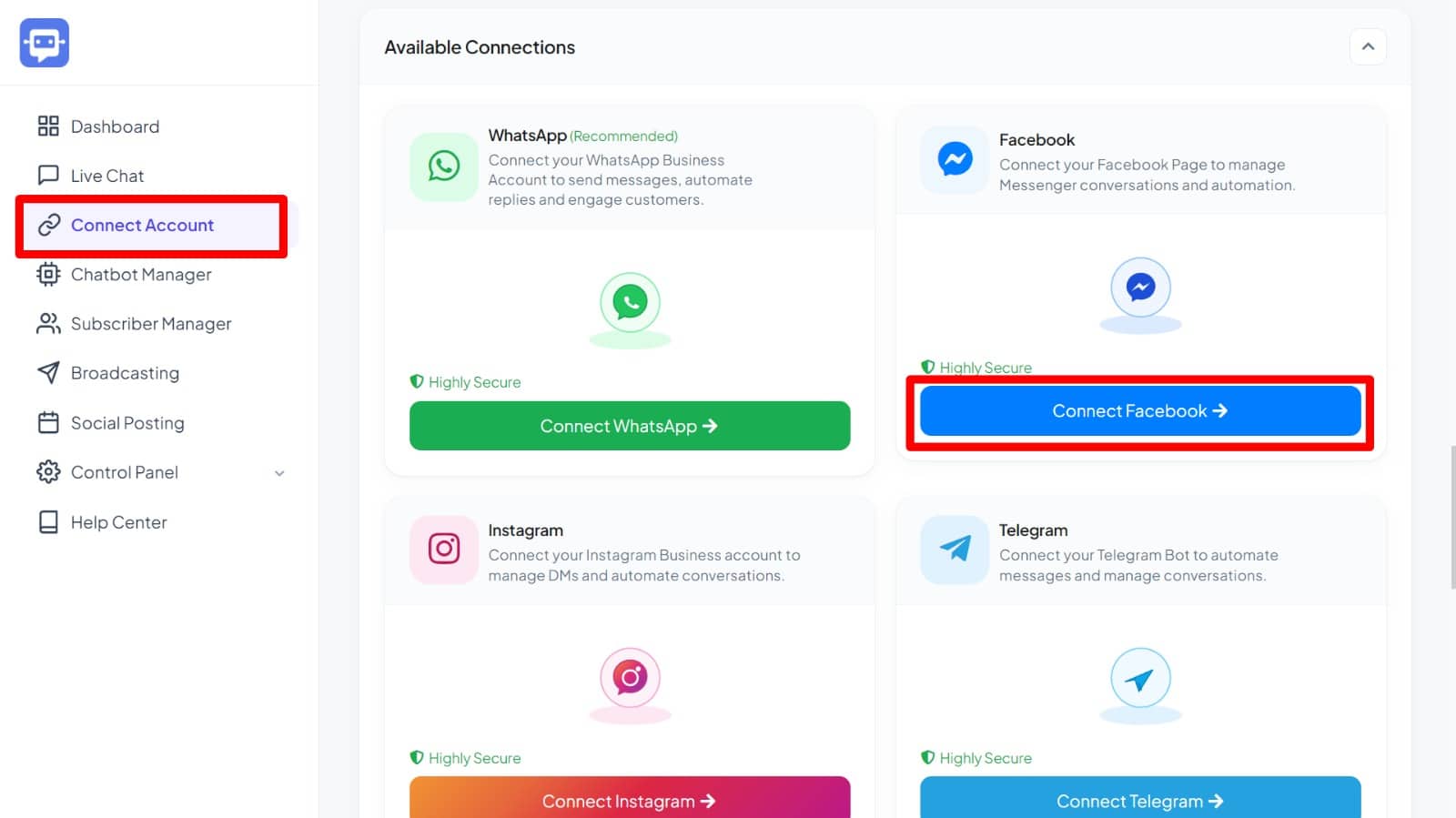
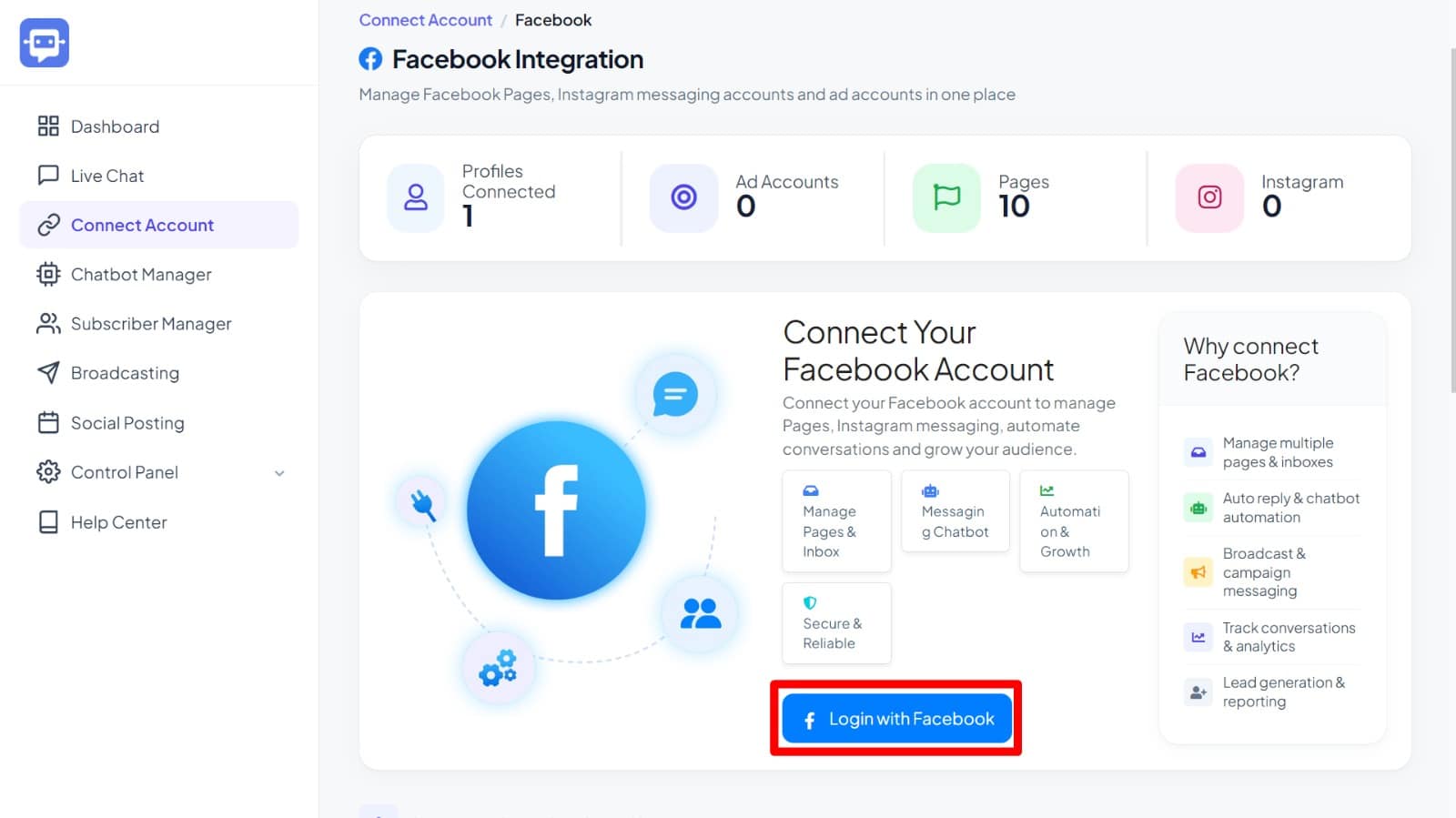
Click Login with Facebook and complete the Meta authorization process to reconnect your account.
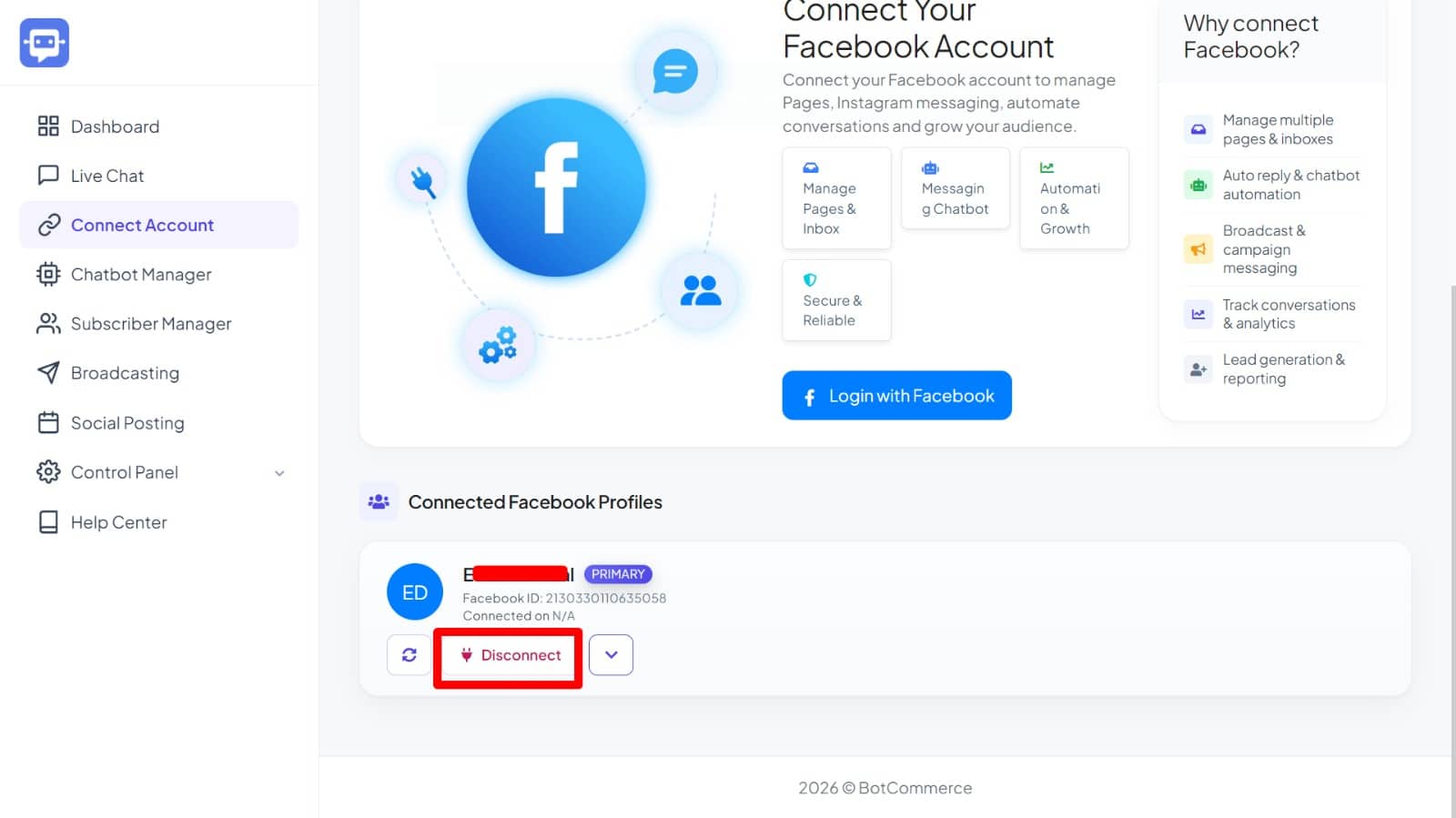
After reconnecting, your account may appear twice inside BotCommerce. If this happens, check which account is empty and has no connected Pages, then click Disconnect on that account. Keep the account that shows your connected Pages.
Reactivate FB And IG Chatbot
After reconnecting your Facebook or Instagram account, you should refresh the chatbot status for each connected Page.
Go to Connect Account, locate your Page, and click Enable / Disable. Disable the chatbot first, then enable it again once the status has changed.
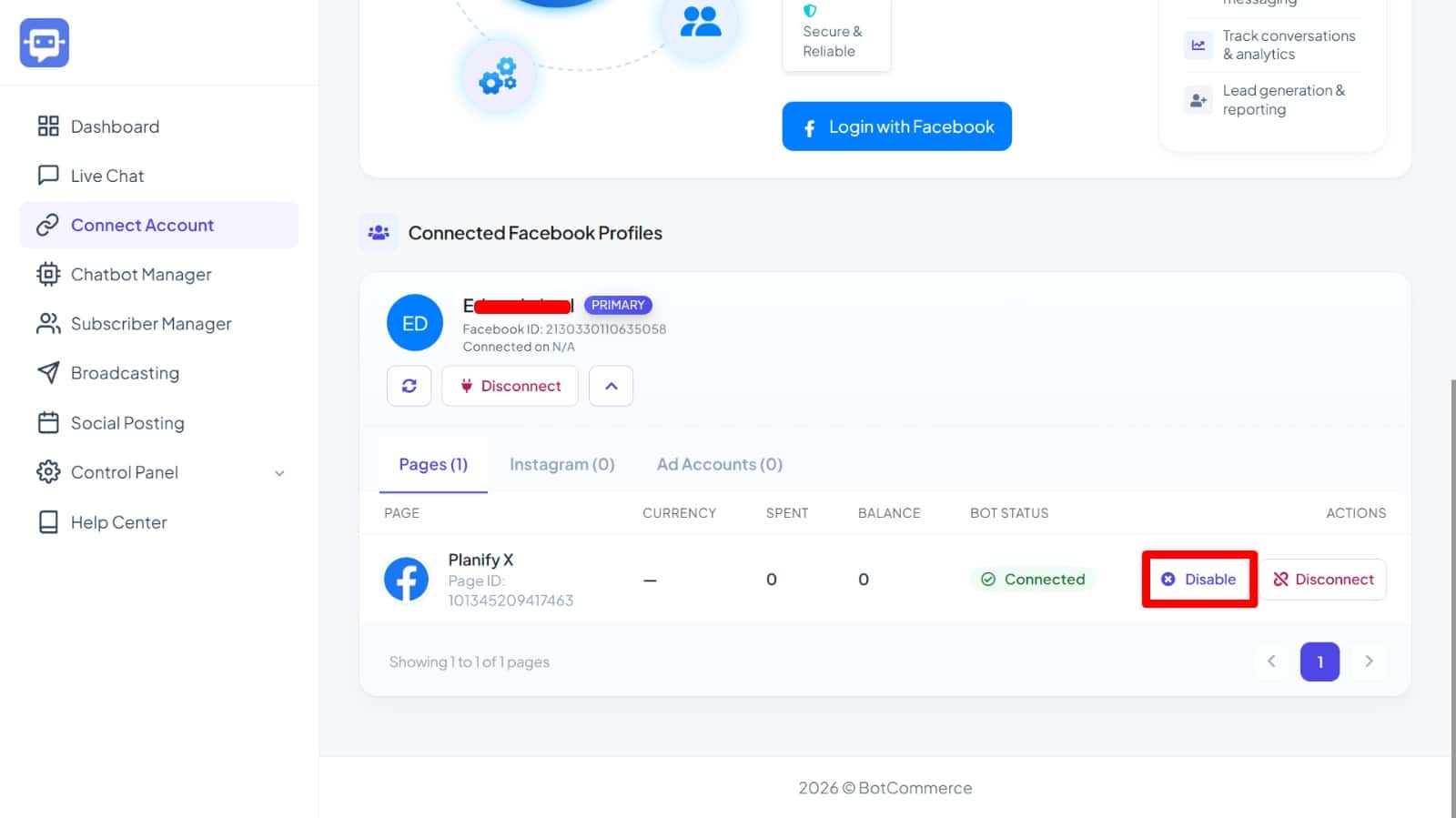
This refreshes the chatbot connection for your Page.
Reactivate FB And IG Comment Automation
After reconnecting your account, you should also refresh your comment reply automation.
Go to Chatbot Manager > Engagement > Comment Automation, disable the comment reply automation, and then enable it again once the status has changed.
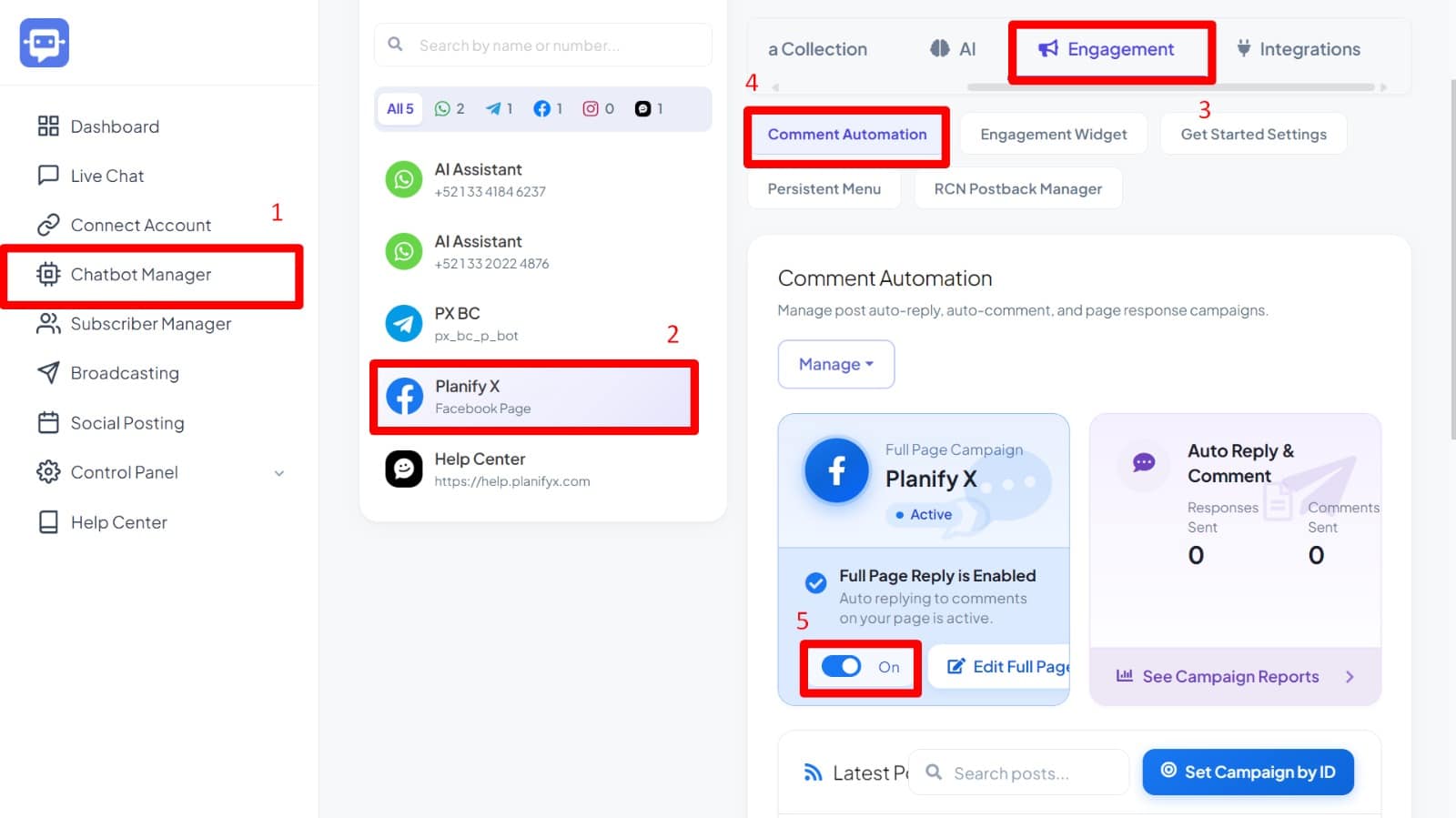
This helps ensure that comment replies continue working correctly after the reconnection.
Fix Your Chatbot Answering Twice
If your chatbot is sending duplicate replies, please follow these steps:
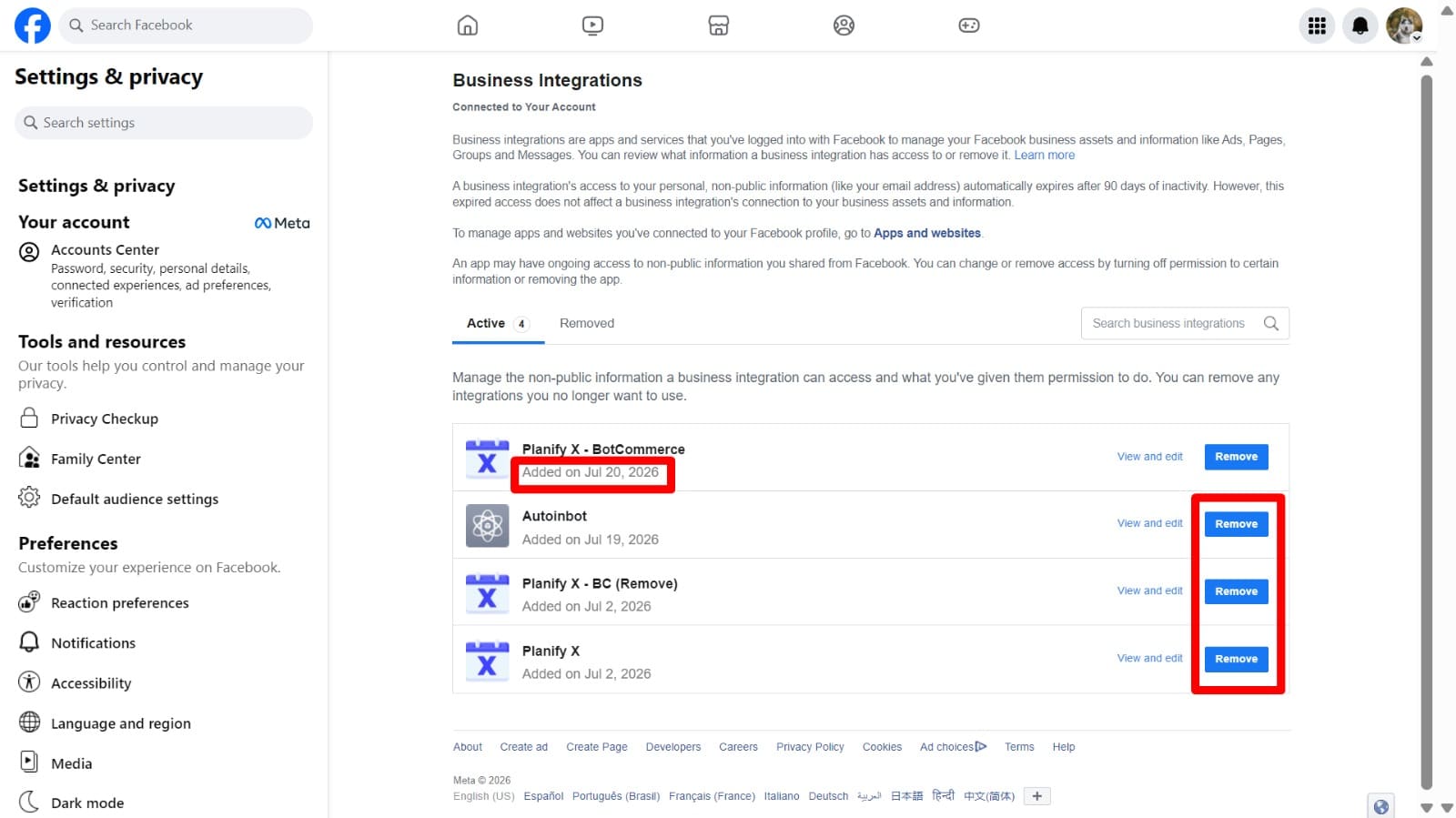
Go to your Facebook account settings by clicking here. Once there, remove any existing connections to other Planify X applications or any third-party applications related to chatbots.
Keep only the connection you created while following this tutorial. You can identify the correct connection by checking the date shown next to it.
Final Thoughts
Meta platform changes can sometimes affect connected accounts, developer apps, Business Portfolios, WhatsApp accounts, Facebook Pages, or Instagram accounts. These changes are outside of our control, but reconnecting your accounts usually restores the service quickly.
To reduce future risks:
- Reconnect your accounts as soon as possible if they are disconnected.
- Export your chatbot flows regularly as a backup.
- Refresh your chatbot and comment automation after reconnecting.
- Remove old Meta partner connections if Meta blocks the connection process.
- Remove the affected WhatsApp number from your Business Portfolio if the connection still fails after removing the partner.
We apologize for any inconvenience this may cause and appreciate your understanding while Meta continues updating its platform requirements.